


Spin the wheel, name picker, ladder game, dice, coin flip: type names once, play them all.
PDF Editor
Merge PDFs and photos, organize pages and compress to a target size, without uploading.
Loading…
About
PDF Editor by SoftKoders is a browser tool for merging, compressing, splitting and signing PDFs. Combine PDF documents with JPG and PNG photos, reorder, rotate or delete pages, and save selected pages as a separate PDF or individual PDFs in a ZIP. Photos become A4 pages with their recorded orientation applied. Put a drawn signature, a seal made from a name or a picture of one on any page or every page, or stamp a seal across the pages. Use it to assemble an application, organize scanned documents or sign a contract. It does not edit existing text, add certified digital signatures or perform OCR.
Choose a target size to recompress eligible images while keeping existing text, lines and fonts. A target is not guaranteed: some documents cannot shrink enough, and scanned text may become blurry. Check the resulting size and preview before downloading. Files, passwords, seals and signatures stay in browser memory and are cleared when you close or reset the page; only your size preference is stored on this device. The beta works in current Chrome, Edge, Safari and Firefox without sign-up, payment or added watermarks.
Features
Merge in submission order
Add PDFs and photos at once, drag the files into the order you hand them in, and their pages follow.
Choose a compression target
Recompress eligible images while preserving existing text. Check the result: some files cannot reach the target.
Organize pages
Select pages to rotate, mirror, delete, move, reverse or split them into their own PDF, and undo or redo changes.
Sign and stamp
Draw a signature or make a seal from a name, put it on any page or every page, and stamp it across the pages.
No upload
Files are opened, edited and saved in your browser and never sent to a server.
How to edit a PDF: which tool for which task
Editing a PDF can mean two different jobs: changing its pages, or changing what is written on them. This tool does the first. It does not change or add text, highlight or annotate, add page numbers or watermarks, recognize scanned text (OCR), convert a PDF to Word or JPG, or add a password. For page work, open the page named for your task; each one opens the same editor, so you can merge, delete and rotate in one go.
- Merge PDF: combine several PDFs, or PDFs and photos, into one file in the order you hand them in.
- Compress PDF: shrink a file that is over a size limit, such as a portal that asks for 2 MB or less.
- JPG to PDF: turn phone photos and scans saved as JPG or PNG into A4 pages, one photo per page.
- Split PDF: save some pages as a new PDF, or every page as a PDF of its own.
- Organize PDF: turn sideways pages upright in the file itself, delete pages and change their order.
- Sign PDF: draw a signature or make a name seal, put it on any page or on every page, or stamp it across the pages.
- Word or Excel files: save them as PDF in the program that made them, then add the PDF.
- Digitally signed PDFs and fillable forms: the saved copy looks the same, but the signature is no longer valid and the fields can no longer be filled in, so keep the original.
Why can't I edit the text in a PDF?
A PDF is made to look the same on every screen and printer, not to be rewritten. Its text is not stored as flowing paragraphs: each line, sometimes each word or letter, is drawn at a fixed spot on the page. The fonts inside often hold only the letters the document uses. So a changed word does not push the rest of the line along, and a new letter may have no shape in the file to be drawn with.
A scanned PDF has no text at all, only a picture of each sheet; reading it as text takes OCR. Changing the text of a PDF takes a PDF text editor, a different kind of tool from this one.
Often you can replace the page instead. When one page of a bundle is wrong, correct it in the program it came from, save it as PDF, add it here, delete the old page and move the new one into its place. When a page needs a signature or a seal, Sign PDF puts one on it without printing, and the page keeps its text.
PDF editor with no sign-up and no usage limit
Some online PDF tools allow only a few tasks an hour or a day, cap the file size or page count, or ask for payment or a membership at download. Here there is no account, no set limit on files, pages or uses, and no payment step, and saved PDFs carry no watermark.
The work runs in your browser, on your own device, so how large a file it can handle depends on that device's memory: a computer handles more than a phone.
Saving does not touch the files you added. It downloads a new PDF, whose name you can change first, so you keep both the original and the result.
Frequently asked questions
Is PDF Editor free?
Yes. It is free, needs no sign-up, and adds no watermark to the PDFs you save.
Are my files uploaded?
No. Files are opened, edited and saved in your browser, and are never sent to SoftKoders or stored. Only the size limit you chose is remembered on this device.
How do I get a PDF under 10 MB?
Add the PDF and choose 10 MB as the maximum size. The tool recompresses eligible images and shows the resulting size. Some files cannot meet the target; check the size and preview before saving.
Can it open a password-protected PDF?
Yes, if you know the password: type it when the file is added. The PDF you save opens without a password.
Which browsers and phones does it work on?
Current Chrome, Edge, Safari and Firefox, on Windows, macOS, Android and iPhone. Very large files may need a computer, which has more memory than a phone.
Can I edit PDF text or recognize scanned text?
No. PDF Editor organizes pages, combines files, converts JPG and PNG images, compresses eligible images and adds signatures and seals as pictures. It does not edit existing text or perform OCR.
Is there a limit on uses or file size? Do I need a paid membership?
No. There is no set limit on files, pages or uses, and no membership or payment, including at download. Very large files depend on your device's memory, so a computer handles more than a phone.
Does it change or overwrite my original file?
No. Saving downloads a new PDF; the files you added stay unchanged on your device.
PDF Editor pages
Merge PDF files and JPG or PNG photos into one PDF. Arrange files and pages in submission order, then preview and download without uploading documents.
Compress PDF images with a target size while keeping existing text. Preview the result before saving; some files cannot reach the chosen size.

Convert JPG and PNG photos to PDF: each becomes an upright A4 page in one file. Add many at once, set their order, and mix them with PDF pages if you like.
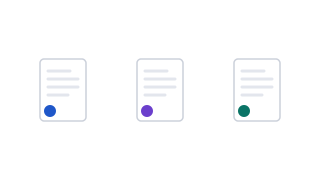
Split a PDF by selecting the pages you need: save them as a new PDF, or every selected page as its own PDF in one ZIP. The pages stay exactly as they were.
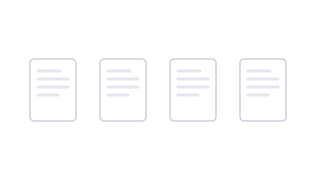
Rotate or mirror PDF pages, delete the ones you don't need and drag the rest into order. Turns and flips are saved in the file, not just in the viewer.
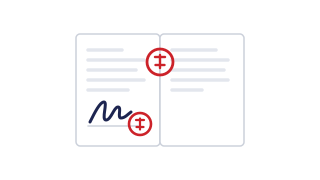
Sign a PDF with a drawn signature, a seal made from your name or a photo of one. Put it on every page or across the pages, and save without uploading.
More services
What are your odds of solo mining a Bitcoin block? Try it free in a browser, no install.
Lottery odds, gacha pity, birthdays and Monty Hall, tried in your browser.
Can’t find what you need, or have a question?
Feedback, bug reports, and partnership ideas are all welcome.